A laptop displaying graphics and a to do list on a wooden desk with plants a router and a window

Back to School in Geneva: 5 Checks to Avoid Computer Failures

When school starts again, computers, printers, and Wi-Fi suddenly kick back into high gear. That’s often when slow performance, pending updates, forgotten passwords, or a backup that’s never been checked resurface.

Before a minor issue becomes a major obstacle, here are five simple steps to prepare your digital environment. This checklist is intended for individuals, self-employed professionals, and small businesses in Geneva.

1. Check the backups—not just to make sure they exist

Seeing a sync icon does not guarantee that all your important files can be recovered. Start by identifying what absolutely must be protected: administrative documents, photos, work files, email archives, or accounting files.

Next, check the date of the last backup and open a few files from the backup. This check is essential: a backup is only truly useful if the data is readable and can be restored.

If your files are only synced to the cloud, be sure to check the trash, version history, and account security. Syncing makes it easier to access documents, but it doesn’t always replace an independent backup. The Swiss National Center for Cybersecurity recommends, in particular, that you regularly check that your copies are complete and readable.

2. Install updates at the right time

Updates for Windows, macOS, browsers, and software fix stability issues and security vulnerabilities. A computer that hasn’t been used much over the holidays may have accumulated several updates.

Plan this process for a day when you have plenty of time and a stable internet connection. Back up your data before a major upgrade, and restart your computer once the installation is complete. Apple recommends using the latest version of macOS compatible with your Mac; Microsoft also provides update, backup, and recovery tools directly within Windows.

On the other hand, avoid software that promises to update all drivers or “optimize” your computer with a single click. When the origin and purpose of a program are unclear, it’s best to seek advice before installing it.

3. Secure the accounts you use every day

The start of the school year is a good time to check your email accounts, Microsoft, Apple, Google, cloud storage, and administrative services. For each important account:

  • Use a unique password that is long enough;
  • Enable two-factor authentication when prompted;
  • Check the address and pickup number;
  • Delete old sessions or devices you don’t recognize;
  • Be wary of messages that ask you to take urgent action or log in immediately.

Two-factor authentication provides useful protection if a password is compromised. It is particularly important for email accounts, since they often allow you to reset passwords for other accounts.

4. Recognize the signs of computer fatigue

A slow computer doesn’t necessarily need to be replaced. A nearly full storage drive, too many programs running at startup, a synchronization issue, overheating, or an aging component could all explain the drop in performance.

Take a few minutes to look for the symptoms:

  • Does it take much longer to start up than it used to?
  • Is the fan running constantly or in an unusual way?
  • Do error messages appear regularly?
  • Is there enough storage space left?
  • Do the battery, charger, or connectors show signs of wear and tear?

If you hear mechanical noises, notice a swollen battery, see spilled liquid, or find that files have disappeared, stop attempting to use the device. Prompt action can limit the damage and improve the chances of data recovery.

For a more in-depth diagnosis, check out our PC and Mac repair guide in Geneva.

5. Test the Wi-Fi, printer, and peripherals

Just because you have a good connection right next to the router doesn’t mean the Wi-Fi will work well throughout the entire room or in the office where you work. Test your devices in their usual locations and check that video conferencing, access to shared files, and printing are working before you need them.

If the connection is unstable, perform a clean reboot of the router and devices, check the cables, and test the connection on multiple devices. A problem affecting only one computer likely has a different cause than an outage affecting the entire network.

Avoid resetting the router without having the configuration information on hand. Doing so may delete the settings needed to connect and make troubleshooting more difficult.

A 10-Minute Back-to-School Checklist

  • Open a file from the last save.
  • Check for system and app updates.
  • Enable two-factor authentication for email and cloud services.
  • Check the available space and startup programs.
  • Test the Wi-Fi, printer, webcam, and microphone.

What type of assistance should you choose in Geneva?

Software, email, or configuration issues can often be resolved through remote computer troubleshooting. Issues related to Wi-Fi, a printer, or multiple devices are generally easier to diagnose during an in-home service visit. For hardware failures, startup issues, or data recovery, a workshop diagnosis is preferable.

DIG — Dépannage Informatique Genève is located at Rue du Commerce 4, in the heart of Geneva, and also offers in-home service throughout the canton or remote support. If your computer is running slowly, if you’re concerned about your backups, or if your internet connection is unstable, contact us for an assessment.

Sources and Useful Resources

Computer breakdown over the holidays: what to do in Geneva?

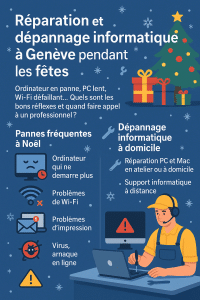
Infography Computer repair and troubleshooting in Geneva during the holidays, frequent Christmas breakdowns and home computer repairs
Computer repair and troubleshooting in Geneva during the holidays: frequent Christmas breakdowns and PC and Mac troubleshooting solutions at home or remotely

During the festive season, we make more use of our computers, tablets and Wi-Fi at home: online shopping, family photos, videoconferencing, games, occasional teleworking, etc. It’s also a time when a computer breakdown or need for a PC or Mac repair can bring everything to a halt at the worst possible moment. In this article, we present the most frequent breakdowns at Christmas, the best reflexes to adopt before calling a technician, and how to avoid them. Dépannage Informatique Genève can help you quickly in Geneva and neighboring communes (Lancy, Vernier, Meyrin, Carouge, Onex, Thônex, Nations) with in-home computer troubleshooting, in-shop computer repair or remote computer support.

Frequent computer breakdowns over the festive season

During the Christmas and New Year period, certain situations come up very often in our Geneva computer repair services:

  • Computer no longer starts after an update, power cut or sudden shutdown.
  • Very slow PC or Mac when you need to sort photos, edit a video or complete professional files.
  • Wi-Fi unstable or down while the whole family is streaming, playing games online or taking part in video calls.
  • Error messages when opening Windows or macOS, or even a blue or black screen on startup.
  • Printer problems when printing tickets, labels or important documents.
  • Suspicion of a virus or scam after clicking on a fake parcel e-mail, a booby-trapped greeting card or a “too good to be true” sales site.

Nobody wants to spend December 24th reinstalling Windows or looking for backups… The idea is to know what you can check yourself, and when to entrust your computer repair to a professional in Geneva.


The right reflexes before contacting a computer repair service

Before calling in a technician, a few simple checks may be all it takes to get your computer back in working order, or at least to better understand the problem. This will help you steer your PC or Mac repair in the right direction.

1) Basic home checks

  • Complete reboot: switch off the computer completely, then reboot. Disconnect the Internet box 30 seconds before reconnecting it.
  • Cables and plugs: check power supply, power strip, screen cables, Wi-Fi enabled on PC and router.
  • Test another device: if Wi-Fi doesn’t work on your computer, try using a smartphone or tablet. If nothing connects, the problem may lie with your box or ISP.
  • Disk space: a nearly full PC or Mac becomes very slow. Freeing up a little space can temporarily improve the situation, while you wait for a more thorough repair (SSD upgrade, software clean-up, etc.).
  • Note error messages: take a photo of the screen (phone), note the error codes and the context (update, software installation, shock, etc.).

2) What not to do

  • Avoid installing “miracle cleaners” or pseudo-optimizers found randomly on the Internet.
  • Do not multiply forced restarts if the hard disk is making noise or if the computer is displaying disk errors.
  • Don’t delete random system files (“Program Files”, Windows folders, etc.) just to save space.
  • Do not click on every “Repair now” message that appears in unfamiliar windows.

These reflexes can often distinguish a minor domestic breakdown from a real need for computer repairs by a technician (disk replacement, reinstallation, data recovery, etc.).


When should you call a computer repair service in Geneva?

It’s best to contact a professional as soon as the breakdown becomes critical or there’s a risk of data loss. For example:

  • The computer won’t start at all, or freezes on a black/blue screen despite several attempts.
  • You hear abnormal noises (clicking, scratching) coming from the hard disk or fan.
  • Windows or macOS regularly displays errors on startup or during use.
  • You suspect a virus, Trojan or ransomware infection (strange windows, ransom messages, encrypted files).
  • You can no longer access your e-mails, business documents or work tools (Microsoft 365, Outlook, Teams, business software, etc.).
  • You’re worried about losing family photos, videos or important accounting records.

In these cases, a Geneva computer repair technician will be able to come to your home, workshop or via remote computer support to make a diagnosis, back up your data if possible, then repair or propose an appropriate solution.


Dépannage Informatique Genève: your ally for PC/Mac troubleshooting and repair during the holidays

In Geneva, Dépannage Informatique Genève is an independent local service, with an office open to the public in the city center (Rue du Commerce 4), specializing in PC and Mac troubleshooting and repair for individuals, freelancers and small businesses. Specifically, we offer :

  • PC and Mac repair in Geneva in the workshop or at home: diagnostics, disk replacement (SSD), memory upgrade, reinstallation, data recovery when possible.
  • Home computer troubleshooting throughout the canton of Geneva for hardware and software failures (PC and Mac).
  • Remote IT support to quickly solve a wide range of problems without having to travel.
  • Diagnosis and data backup prior to reinstallation or computer repair.
  • Personalized advice to improve the stability of your PC or Mac and secure your accounts (passwords, double authentication, backups).

Our rates are public and transparent, available on our Rates page, and our response times (priority for IT emergencies, time slots, etc.) are described on our SLA & availability page.

So you know what to expect, even during the holiday season.

For the self-employed and small businesses in Geneva who need regular support, we also offer a
IT support for freelancers and small businesses
tailored to your needs.


Preventing computer breakdowns this Christmas

Once the outage has been resolved, it’s the ideal time to implement a few simple measures to reduce the risk of another computer breakdown during the next holiday season:

  • Set up regular backups (external disk, NAS, cloud) for your family photos and important documents.
  • Check the condition of your disks (HDD/SSD) and plan a replacement before the failure, especially if the computer is old or already slow.
  • Software clean-up: remove unnecessary programs, superfluous browser extensions, toolbars, etc.
  • Update Windows, macOS and essential software (browser, office suite, antivirus).
  • Secure your accounts: unique, strong passwords, double authentication on key services (e-mail, banking, online stores).
  • For professionals and SMEs, consider regular IT monitoring via a service provider such as i4M Services Informatiques Sàrl, so that incidents can be anticipated and managed before they become critical.

Need computer repairs or troubleshooting in Geneva over the holidays?

Whether you’re an individual, a freelancer or a small business, if you’re faced with a computer breakdown at Christmas or during the festive season,
Dépannage Informatique Genève is at your disposal for in-home PC or Mac troubleshooting, in-shop computer repair or remote computer support throughout the canton of Geneva.

Contact us via our online form or by telephone to arrange a fast, clear and secure response.

We provide PC and Mac repair in Geneva, home computer troubleshooting, virus removal, data recovery and remote computer support for individuals, freelancers and small businesses throughout the canton.

Man with protective glasses soldering an electronic board on a work table

PC and Mac Repair in Geneva: A Practical Guide for 2026

In this 2026 guide, you’ll find useful troubleshooting steps to diagnose common PC and Mac issues, protect your data, and determine when to call a professional in Geneva.

Whether you’re an individual, a self-employed professional, or a small business, you’ll know which checks to perform safely and when to stop troubleshooting to avoid making the problem worse. We serve Geneva and the surrounding towns—Lancy, Vernier, Meyrin, Carouge, Onex, and Thônex—as well as the Nations area. For immediate assistance, check out our PC and Mac repair service.

Why repair rather than replace?

  • Circular economy: Extending the life of your device (battery, SSD, RAM, fan, keyboard) reduces its environmental impact and avoids unnecessary expenses.
  • Actual performance: A system cleanup, a clean reinstall, or an SSD/RAM upgrade can often transform a “slow” computer into a perfectly responsive machine.
  • Security and Compliance: A properly executed repair includes backing up data, securely erasing data (before resale), and restoring compliance (updates, antivirus software, encryption, accounts).
  • Time saved: Having your apps, bookmarks, fonts, printers, and VPNs migrated correctly saves you days of hassle.

How to Approach Troubleshooting (PC & Mac) Like a Pro

Before performing any PC or Mac repairs, start with a simple, structured diagnostic.

1) The 6 Quick Questions

  1. Is this a new problem or a recurring one?
  2. Did it start happening after an update, a shock, exposure to liquid, or an unusual noise?
  3. Does it run on AC power and on battery power (for laptops)?
  4. Has the fan noise changed (louder, cyclical, absent)?
  5. Is the storage space almost full (less than 10–15% free)?
  6. Do you have a recent backup (Time Machine, OneDrive/SharePoint, NAS, USB drive)?

2) Basic Physical Checks

  • Power Supply & Cables: Original charger, undamaged cable, other wall outlet.
  • Peripherals: Unplug everything (USB-C dock, monitors, hard drives, printers).
  • Heat: Keep the base well-ventilated, ensure the vents are unobstructed, and do not place the unit on a comforter or sofa.

3) Initial testing on Windows 10/11

  • Start in Safe Mode (Shift + Restart → Troubleshoot → Advanced options).
  • System Tools (Admin Command Prompt):
    sfc /scannow
    DISM /Online /Cleanup-Image /RestoreHealth
    chkdsk C: /scan
  • Task Manager: Startup tab → disable anything you don’t need.
  • Windows Update and drivers (chipset, graphics card, network).
  • Disk space: Aim for >15% free; consider switching to an NVMe SSD if you’re still using a HDD.

4) Initial testing on macOS

  • Safe Mode: Restart while holding down the Shift key (the procedure varies between Apple Silicon and Intel).
  • Disk Utility: “SOS / First Aid” on the system volume and data volumes.
  • Reset NVRAM/PRAM (Intel Mac) and SMC if the computer exhibits unusual behavior.
  • Activity Monitor: CPU/Memory/Disk tab—check for abnormal processes.
  • Storage: Keep 15–20% of your storage space free for Spotlight, caches, and Time Machine snapshots.

Common Problems and Practical Solutions

A. The computer won’t turn on anymore

  • PC: Try a different cable or charger; if it’s a tower, check the PSU switch, the power outlet, and the motherboard beeps (if applicable). Unplug everything except the keyboard, mouse, and monitor.
  • Mac: Check the USB-C charger (make sure it has sufficient wattage), and try an SMC reset (Intel).
  • Things to check: Charging LED, fan noise, signs of life (backlit keyboard), black screen but backlight on.
  • When to seek service: fluid leakage, odor, sparks, swollen battery, drop → mandatory service.

B. Very slow startup, random freezes, noisy fans

  • Possible causes: Overloaded or faulty SSD, overheating (dust/thermal paste), unstable driver, aggressive third-party antivirus software, insufficient RAM.
  • Solutions: thermal cleaning, NVMe SSD upgrade, clean reinstall, updated drivers, switch back to Windows Defender, add 8–16 GB of RAM if possible.
  • Mac: Spotlight reindexing, iCloud Drive full, Photos processing, Chrome processes. Consider a clean install of macOS and a fast external SSD for testing.

C. Black Screen / No Image

  • Check: brightness, external display, cable/port, display switching (Win + P).
  • Mac: Try an external display, a certified video adapter, or a NVRAM reset if you’re having issues with resolution or the display.
  • Graphics card: If you experience 3D artifacts or crashes, check your drivers or VRAM. On a desktop computer, test a different GPU if available.

D. Battery drains too quickly / charging is unstable

  • Windows: Battery Report (powercfg /batteryreport), power plans, chipset drivers.
  • macOS: Battery Cycle Count, Status in “About This Mac.”
  • Replacements: often cost-effective (MacBooks, laptops) → opt for high-quality parts.

E. Noises, clicks, and scratching sounds (storage)

  • A hard drive that makes a “clicking” noise = a warning sign. Stop writing to it. Back it up immediately.
  • Always create a disk image or clone the drive before attempting any repairs. If the data is critical, don’t keep trying —entrust the data recovery to a professional.

F. Slowdowns in everyday office use

10-Minute Checklist:

  1. Keep at least 15% of the drive free.
  2. Startup: Disable automatic startup for Slack/Teams/Zoom if not needed.
  3. Uninstall those “miracle optimizers.”
  4. Update your operating system, Office, and drivers.
  5. Browser: profiles/keys, extensions (keep only the essentials).
  6. OneDrive/iCloud: Check synchronization and files on demand.
  7. Antivirus: Windows Defender is sufficient in most cases.
  8. Quick SSD test (SMART), CPU temperature (remember to dust it off).
  9. Spotlight/Windows Search Indexing: Let the indexing finish.
  10. If the computer has 4–8 GB of RAM, upgrading to 16 GB makes all the difference.

Need PC or Mac repairs in Geneva?

For diagnostics, repairs, SSD/RAM upgrades, or data recovery, check out our PC and Mac repair service. We can provide on-site service or accept your device at our permanent workshop located at 4 Rue du Commerce, 1204 Geneva.

Before you come in, please check our rates and service areas. To schedule a service visit, call +41 79 868 50 50 or use our contact form.

Whether you need to manage an IT infrastructure or meet the ongoing needs of an SME, discover the IT support services for SMEs offered by i4M Services Informatiques Sàrl.

Why backing up your data should be a priority for your business

3 people sitting around a table talking about backing up their data

In a world where data is at the heart of all activities, the loss of information can be dramatic for any organization, whatever its size. And yet, at i4M IT Services, we still find all too often that backup is neglected or poorly managed, when it should be an absolute priority.

Good practice

To effectively protect your data, here are a few tips that we apply on a daily basis at i4M and that we recommend to all our customers:

  • Multiply backups: don’t be satisfied with just one copy. Go for a “3-2-1” strategy: 3 copies of your data, on 2 different media, including 1 off-site (cloud or secure external disk).

  • Automate processes: manual backups are a thing of the past. Opt for automated, programmed and monitored solutions.

  • Test restoration: a backup that doesn’t restore itself is useless. Perform regular restore tests to ensure that your files are recoverable and intact.

  • Protect the cloud too: many people think of their local servers, but forget to back up their cloud environments (Microsoft 365, Google Workspace…). However, mishandling or hacking can also lead to data loss on these platforms.

  • Train your teams: raising your staff’s awareness of best practices and the risks associated with IT security is a guarantee of resilience.

A little tip: plan a “backup day” every quarter, when the whole team checks together that everything is working, that restores are possible and that everyone knows the procedure to follow in the event of an incident.

Risks underestimated… until it ‘ s too late

A story from a Geneva SME
A few months ago, a local SME contacted us in a hurry: following a ransomware incident, all their work files were blocked. Their last backup was several months old… Result: lost working days, delayed invoicing and a lot of stress. Fortunately, we were able to recover some of the data, but the experience taught them a lesson: since then, they have adopted an automated, outsourced backup solution, tested on a monthly basis. Today, they sleep much more peacefully!

Personalised support

At i4M, our mission goes beyond simply installing technical solutions. We analyze your needs, implement backup strategies tailored to your business, and continuously monitor the security and availability of your data. Our team is always on hand to advise you, intervene rapidly in the event of an incident, and enable you to work with peace of mind, in complete confidence.

For freelancers and small businesses in Geneva, we offer

full IT support including backup and security management
.

We believe that IT security is above all a question of trust and people: every company is unique, every risk is different, and every solution needs to be customized.

Conclusion

Don’t leave your company’s future to chance. Investing in a robust backup policy means guaranteeing business continuity and protecting what you’ve built. Don’t wait for the next incident to happen!

If you’d like to take stock of your backup strategy, update your tools or simply ask a question,

contact our
team
! We look forward to hearing from you.


i4M Services Informatiques Sàrl

Your security and peace-of-mind partner in Geneva.

#Backup #IT Security #SME #IT Consulting #i4MServices

Microsoft 365 Best Practices Manual

Microsoft 365 tools on a desktop
Microsoft 365

Daily management and security recommendations for Microsoft 365 users

1. Password and account security

  • Strong password policy: Use passwords longer than 12 characters, combining upper and lower case letters, numbers and symbols. Change them every 90 days to protect against unauthorized access.
  • Multi-factor authentication (MFA): Add extra security by requiring verification via an application or SMS.
  • Avoid sharing credentials: Prevent unauthorized access. Report compromised accounts to IT support immediately.

2. Email security

  • Identify phishing e-mails: Beware of urgent or unexpected messages, check senders carefully and avoid transmitting sensitive information.
  • Attachments and links: Do not open attachments or click on links from unknown sources. Check links before clicking.
  • Secure email communications: Encrypt sensitive emails to protect confidential data.

3. Data management and storage

  • OneDrive and SharePoint: Store your files securely online to protect your data, facilitate collaboration and benefit from automatic backups.
  • File sharing: Use Microsoft secure links instead of email attachments. Review shared file permissions regularly.
  • Backup and recovery: Synchronize your data regularly on the cloud to ensure recovery in the event of accidental deletion or hardware failure. To find out more, see our article on

    corporate data backup
    .

4. Equipment safety and maintenance

  • Secure access: Access Microsoft 365 only from secure devices and trusted networks to avoid potential intrusions.
  • Device updates: Install system and antivirus updates regularly to avoid vulnerabilities.
  • Mobile device management: Register your devices with tools such as Microsoft Intune to improve control and security management. For freelancers and small businesses in Geneva, this can be part of a

    outsourced IT support
    .

5. Communication and collaboration tools

  • Microsoft Teams security: manage channel permissions, avoid sensitive discussions in open channels and control meeting participants.
  • Secure online meetings: Use waiting rooms or passwords to manage participants and improve security.

6. User awareness

  • Stay informed: Keep up to date with current security risks and threats in the digital environment.
  • Security incidents: Know your organization’s reporting procedures. Immediately report any suspicious activity or breach to IT support.

7. Confidentiality and privacy

  • Data protection: follow organizational and regulatory guidelines (such as the RGPD) for handling sensitive personal data.
  • Confidentiality agreements: Understand your confidentiality obligations. Report accidental disclosures promptly.

8. Logout and session management

  • Session security : Always log out or lock your workstation when you’re away, to reduce the risk of unauthorized access.
  • Public computers: Avoid accessing Microsoft 365 on shared devices. If necessary, use private browsing mode and log out completely afterwards.

9. Basic administration of Microsoft 365 (for novice administrators)

  • User management: Regularly review roles and access levels to ensure that permissions match job responsibilities.
  • Group management : Clearly define who belongs to each group or team. Audit groups regularly to maintain security and efficiency.
  • License management: Manage user licenses efficiently. Remove unused licenses to optimize costs.
  • Audit logs: Check audit logs periodically to detect and investigate suspicious activity.
  • Security and Compliance Center: familiarize yourself with the basic settings of the Microsoft 365 Security and Compliance Center to manage data loss prevention policies, threat protection and compliance obligations.

10. Reporting and assistance

  • IT Helpdesk: Report problems promptly. Maintain open communication with IT support to resolve security issues quickly. If you don’t have a dedicated team, you can call on

    our technicians in Geneva
    .

Summary list

  • ☐ Use strong, unique passwords
  • ☐ Enable multi-factor authentication
  • ☐ Vigilance against email phishing threats
  • ☐ Regular backups on OneDrive or SharePoint
  • ☐ Device security and regular updates
  • ☐ Rigorous file sharing management
  • ☐ Stay informed about safety risks
  • ☐ Report incidents to IT quickly
  • ☐ Regularly review user roles, licenses and audit logs

Conclusion

Adhering to these recommendations ensures a secure, efficient and well-managed Microsoft 365 environment, significantly reducing security risks and administrative challenges.

Man looking at statistics on doses of covid 19 vaccine administered in the united states on a cell phone

Computer Repair in Geneva: Regain Your Digital Peace of Mind

Three people around a screen talking about backing up their data

Is your computer running slowly, is your Wi-Fi unstable, is an update stuck, or is your software unresponsive? This guide will help you choose between remote support, an in-home service call, and dropping off your device at a repair shop in Geneva, depending on the type of problem and how urgent it is.

A constantly evolving digital life

Geneva is renowned for its dynamism and openness to the world. This effervescence is reflected in the way its inhabitants use new technologies: teleworking, online communication, videoconferencing or even managing day-to-day activities via applications. But the more we depend on these tools, the more vulnerable we are to IT malfunctions.

A simple virus, an incorrectly installed update or a faulty home network can seriously hamper our routine. That’s why using a professional computer troubleshooting service in Geneva is a major advantage. Not only do you benefit from rapid intervention, but you can also count on solid expertise to solve problems that, at first glance, may seem insoluble.

In-home computer support: convenient and effective

Personalized support

Home computer troubleshooting is an increasingly popular option. Rather than dismantling your PC and traveling to a repair shop, you can have a technician come straight to your home. This option offers a number of advantages:

  • Convenience: no need to move or carry bulky equipment.
  • Time-saving: you can get on with your work while the specialist carries out the diagnosis and repair.
  • Adapting to your environment: every household has a different configuration (network, equipment, peripherals), and the expert takes these specific features into account to propose a tailor-made solution.

Transparency and advice

More than just a simple repair, an in-home service is an opportunity to discuss the problem with the technician. This enables you to understand the cause of the malfunction, and to get advice on how to prevent it from happening again. A good computer troubleshooting professional makes a point of explaining his methods in a pedagogical way, so that you can optimize the use of your equipment on a daily basis.

The rise of remote computer troubleshooting

Speed and flexibility

In an increasingly connected world, remote computer troubleshooting is a practical and effective solution. Using secure remote assistance tools, an expert can take control of your computer to identify the source of the problem and remedy it without setting foot outside his or her office. This method offers many advantages:

  • Almost immediate intervention: you book an appointment online or by phone, and the technician can quickly connect to your device.
  • Time-saving: neither you nor the professional waste time on travel.
  • Lower cost: the absence of a journey often means lower fares.

Security and confidentiality

For many users, security is a crucial issue. So it’s legitimate to wonder about the reliability of remote computer troubleshooting. In reality, most professionals use certified software and encrypted connections, guaranteeing the confidentiality of your data. The technician can only access your computer with your authorization, and you retain control at all times.

The advantages of local service in Geneva

Proximity and local knowledge

Calling on a Geneva-based computer repair service offers advantages specific to the local context. Technicians based in the region are familiar with Internet service providers, network specifics and the technological preferences of local residents. This local knowledge translates into greater responsiveness and more accurate diagnosis.

A relationship of trust

When you call on a local professional, you often benefit from closer follow-up and simplified communication. You can easily contact the same team again if a new problem arises, or if you want to upgrade your hardware. This relationship of trust helps to create a reassuring climate, especially for people who are not necessarily at ease with the technical aspects.

Which type of intervention should you choose?

  • Remote Support : suitable for software issues, settings, email, and updates when the computer is turned on and has an Internet connection.
  • On-site Service : useful for Wi-Fi, printer, or network issues, or when multiple devices need to be tested in their usual environment.
  • Workshop Drop-Off : Recommended for a computer that won’t start, a part replacement, liquid damage, or data recovery.

If you notice an unusual odor, a swollen battery, liquid, or a mechanical noise coming from the drive, turn off the device and avoid making repeated attempts.

Protecting your data: a top priority

Emerging risks

With cyber-attacks and malware on the increase, IT security is more important than ever. A simple click on a fraudulent link can be enough to infect your system. Individuals are not spared and must adopt rigorous protection measures.

The role of computer troubleshooting

A good IT repair service in Geneva doesn’t just deal with one-off problems: it also helps you secure your equipment. Antivirus installation, firewall configuration, advice on password management … Our technicians can guide you to considerably reduce the risks of or loss of data.

Tips to avoid breakdowns and optimize your equipment

Beyond computer troubleshooting, there are certain best practices that can help extend the life of your devices and prevent malfunctions:

  • Update regularly: operating system and software updates often correct security flaws and improve performance.
  • Make frequent backups: use an external hard drive or cloud service to protect your data in the event of hardware failure.
  • Install a reliable antivirus: make sure it’s active and regularly updated.
  • Check the condition of your hardware: dust off the inside of your PC and monitor the temperature of components (especially in hot weather).
  • Call in a professional: at the first sign of trouble, call for remote or in-home computer troubleshooting to prevent the situation from worsening.

Conclusion: choose digital serenity

For Geneva’s private customers, ensuring a reliable computer troubleshooting service has become essential. Whether you prefer to have an expert come to your premises or opt for remote computer troubleshooting, the important thing is to be able to count on competent, responsive assistance in the event of a problem. Beyond repairs, a good professional will be able to advise you on how to improve the security of your equipment and adopt the right reflexes on a daily basis.

Don’t let technical problems ruin your day or cause you to lose valuable data. By opting for quality IT troubleshooting in Geneva, you can give yourself the peace of mind you need to enjoy your digital environment to the full.

Prepare for Your Service Appointment

Check our rates and service areas, then describe the problem, the device model, and any error messages you’ve seen. Call +41 79 868 50 50 or submit your request through our contact form.